TikTok Live is a powerful platform for VR gamers who want to share immersive experiences in real time. Yet many creators face the same frustrating message: their stream has been restricted for “unoriginal or pre-recorded content.”
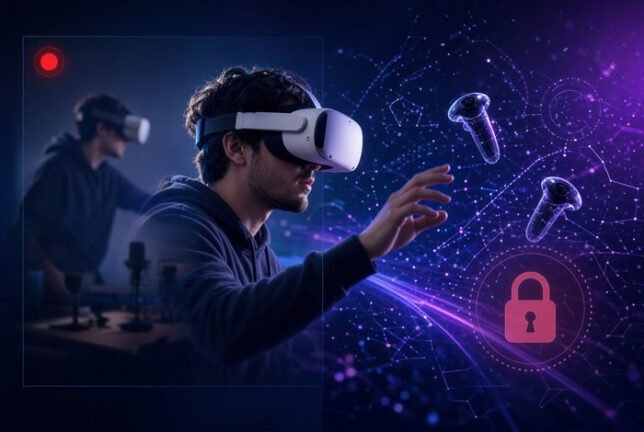
This restriction is common among VR streamers even when everything is genuinely live. Understanding why it happens — and how to reduce the flags — can make a big difference to your reach and monetisation.
Why TikTok Flags VR Streams as Unoriginal or Pre-Recorded
TikTok’s Community Guidelines and LIVE policies require streams to be real-time, original, and interactive. The platform actively detects content that looks like screen recordings, casts from other devices, or pre-produced material.
USE PROMO CODE VRCGUY for VR game downloads.
Official guidance specifically advises against:
- Screen capturing
- TV casting or similar behaviours
- Playing content from electronic device screens
When you stream VR gameplay from a headset such as the Meta Quest, the system often interprets the game feed as reproduced content. The game assets themselves were created by someone else, and the casting process can introduce compression, latency, or visual patterns that automated detection systems associate with recordings.
A pure 50/50 split-screen layout (webcam on one half, full game cast on the other) frequently triggers these systems because the game portion dominates and the human presence can appear limited, especially when a headset partially obscures the face.
Common Triggers in VR Live Setups
Several factors unique to VR streaming increase the chance of a restriction:
- Casting the headset display – Casting the Quest view to a browser or app and then capturing it is treated as screen recording of an electronic device.
- Game footage dominance – Large areas of pre-rendered game content are flagged as unoriginal.
- Limited visible human activity – Wearing a headset reduces facial expressions. If the webcam shows mostly a static or partially obscured face, the stream can look low-interaction.
- Layout choices – Clean horizontal splits or layouts where the game takes most of the screen raise the risk.
- Technical artefacts – Slight stuttering, lower frame rates, or compression from wireless casting can make the feed appear less “live.”
These issues affect many legitimate gaming creators, not just VR streamers. The detection is largely automated and imperfect, which is why appeals often fail even when the stream is fully live.
Practical Ways to Reduce Restrictions
You can significantly lower the chance of flags by adjusting your layout, capture method, and streaming behaviour while still giving viewers a clear view of both your real-world movement and the VR gameplay.
1. Prioritise Clear Human Presence in the Layout
TikTok rewards visible, continuous real-time human activity. For VR gaming this means showing enough of your body and movement so viewers (and the algorithm) can see you are actively playing.
Recommended vertical layout:
- Top 40–50% – Webcam framed wider to show upper body, arms, and movement (face still visible).
- Bottom 50–60% – Cropped game cast.
This keeps a strong live-human signal while giving the game plenty of space. Avoid pure 50/50 splits and very small webcam windows.
Create two scenes in TikTok Live Studio:
- Just Chatting – Webcam only, large and well-lit.
- Gaming – The body + game layout above.
2. Improve How You Capture the Headset Feed
Cast to a browser window on your PC, then use Window Capture of that specific window inside TikTok Live Studio. Crop tightly so no browser chrome or Meta UI remains. Window Capture is generally cleaner than full Display Capture for detection systems.
If you use Meta Quest Link, the cast can appear as a video capture device, which often looks more stable.
3. Change Your Go-Live Sequence
Start the stream on the Just Chatting scene. Talk, greet viewers, and build interaction for the first 10–15 minutes. Only then switch to the Gaming scene. This helps the system register the stream as live and interactive before the game feed appears.
4. Maintain High Verbal Interaction
Talk throughout the stream. Describe what you are doing, react out loud, and respond to comments. Sustained real-time speech is one of the strongest signals against the pre-recorded flag.
5. Technical Best Practices
- Use a stable high-bandwidth connection (preferably 5 GHz Wi-Fi or Ethernet).
- Ensure good lighting on your body so movement is clear.
- Use the official Pause feature if you need to step away — never leave a static screen.
- Avoid watermarks or third-party logos on the game feed.
Final Thoughts
TikTok’s restrictions on VR Live Gaming streams are usually the result of automated systems reacting to casting methods, game-heavy layouts, and limited visible human activity rather than deliberate policy violations. By increasing the size and clarity of your real-world presence, using cleaner capture methods, starting with interaction-focused scenes, and maintaining strong verbal engagement, many creators see a clear reduction in flags.
Experiment with the body-focused layout and the two-scene approach on your next few streams. Track whether the restrictions decrease. Small, consistent changes often produce the best results over time.
If you continue to experience issues after making these adjustments, document your setup and appeal with evidence that the content is live. Persistence and careful optimisation remain the most reliable path forward for VR creators on TikTok Live.